
This guide is for restaurant owners and operators. If you're a customer looking to request a refund on your order, visit Deliveroo's help centre instead.
Summary: Log in to Deliveroo Partner Hub, go to Sales → Refunds, review each claim and gather context, click Dispute this refund, select the items and reason, upload evidence, and submit within 7 days. Deliveroo aims to respond within 3 days. If rejected, you have 72 hours to escalate.
Deliveroo issues refunds by default. A customer submits a claim via their app, and unless you review and dispute it within 7 days, the money is deducted from your next payment. This customer-first approach is baked into Deliveroo's DNA. The company raised funding from Amazon and adopted a similar philosophy: when in doubt, side with the customer. It keeps satisfaction scores high. The cost lands on you.
Most restaurants don't push back. Not because they agree with the claim, but because the process isn't obvious and the window is short.
This is a step-by-step walkthrough of how to dispute a refund in Deliveroo Partner Hub, what to look for before you submit, and what actually moves the needle when Deliveroo reviews your case.
Step 1: Find your refunds in Deliveroo Partner Hub
Log in to partner-hub.deliveroo.com. You'll need Manager (limited), Manager, or Admin access. Staff access won't let you submit disputes.
In the navigation bar on the left, click Sales. Along the top of the Sales page you'll see a row of tabs. Click Refunds to open the refunds view.
At the top you'll see filters for site and date range. If you run multiple locations, filter by one site at a time so nothing slips through.
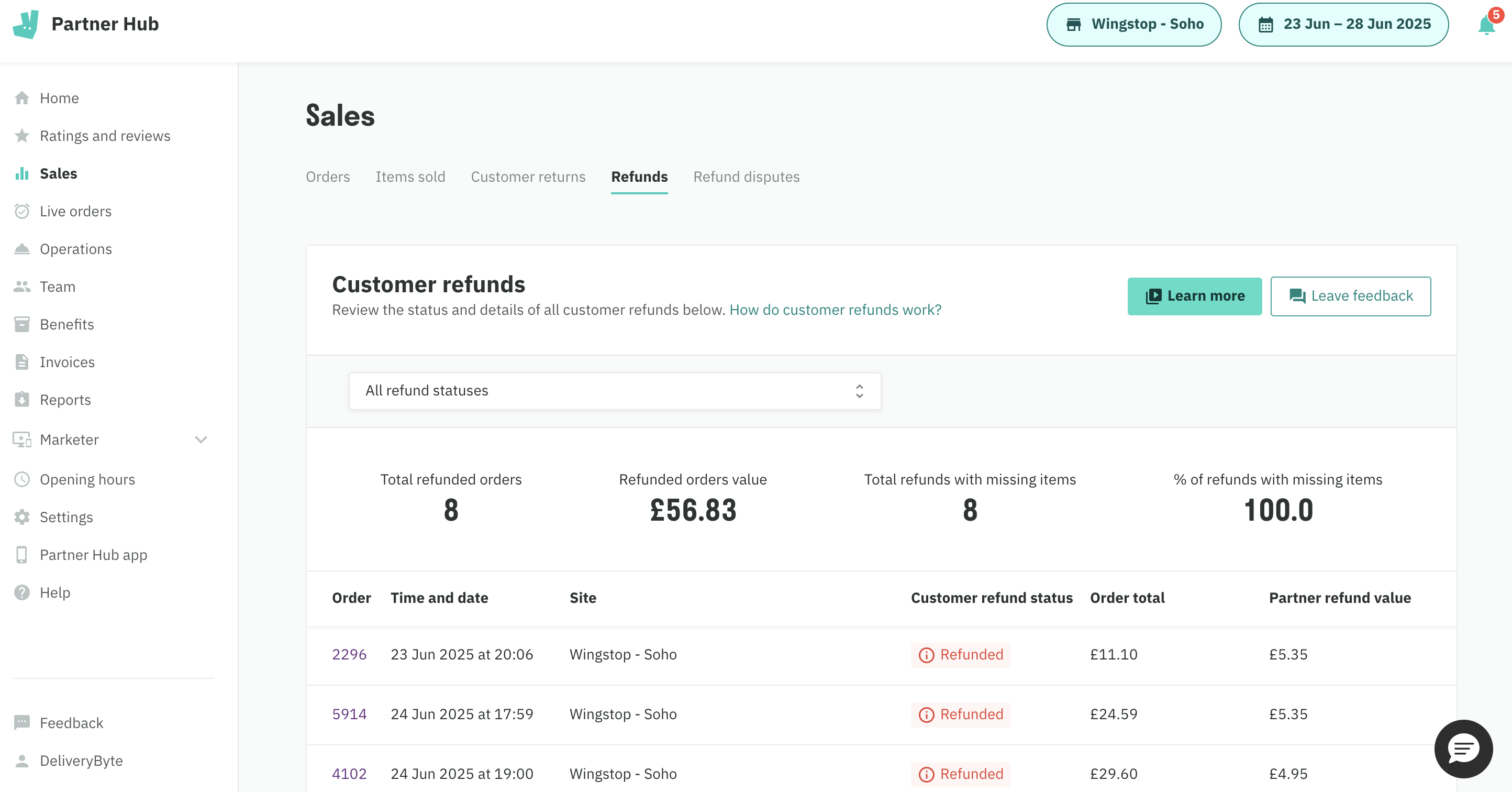
The table shows every refund within your selected date range. The columns that matter most are:
Order total. What the customer paid for the full order.
Partner refund value. What you've been charged for the refund. These are often different. A £30 order might carry a £4 refund against a single item. That's the number you can dispute. Worth knowing: Deliveroo doesn't always rule all or nothing. Sometimes they approve a partial amount, so even a partially successful dispute puts money back in your pocket.
Above the table you'll also see summary stats: total refunded orders, total value, and the share of refunds flagged as missing items.
Step 2: Review the refund, gather information, and investigate
Click the order ID to open the individual refund. Before deciding whether to dispute, take the time to understand what actually happened. Review the information on the page, pull together the context, and check with your site manager or shift manager for the time and day of that order.
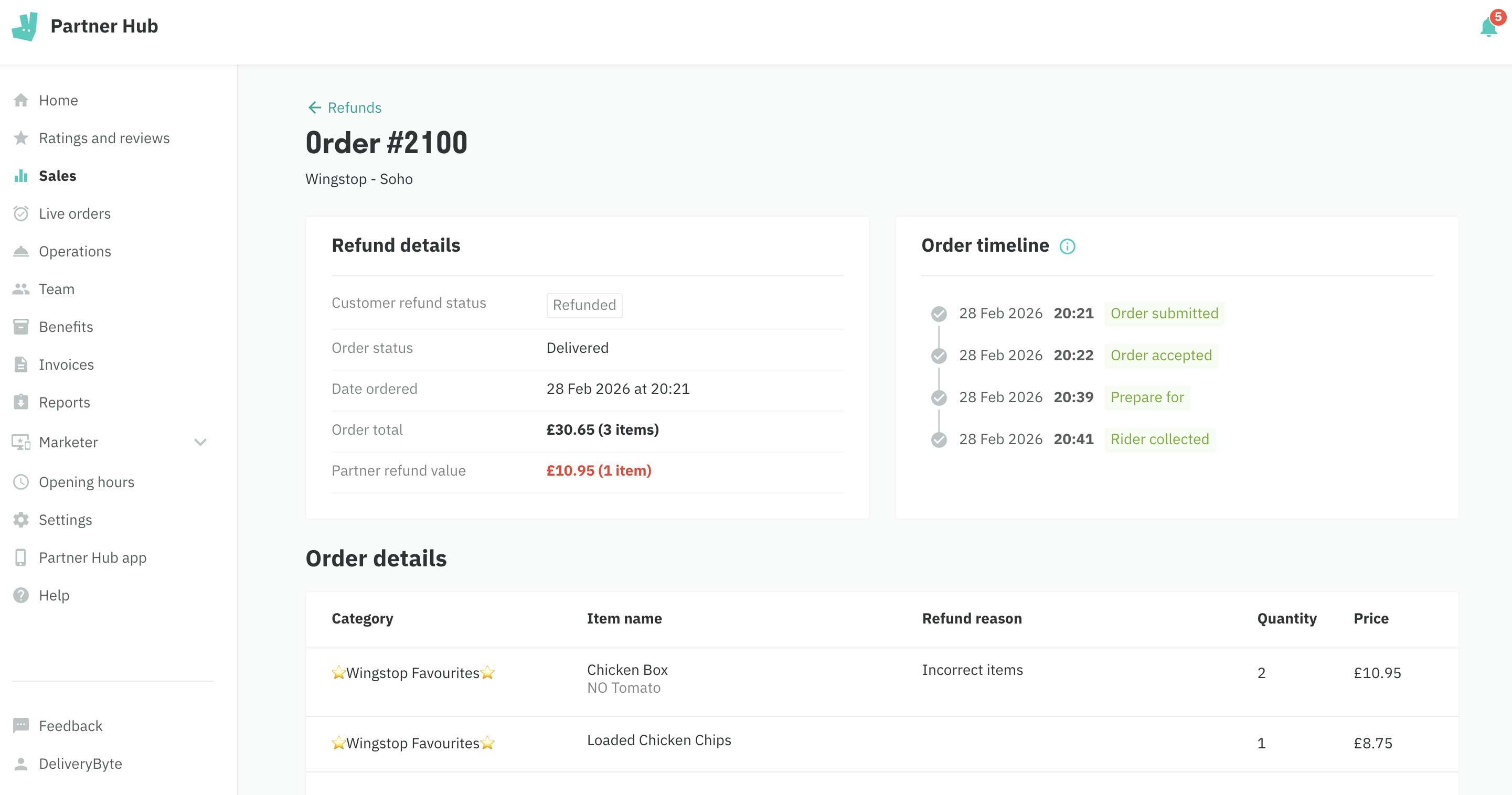
Work through the page from top to bottom.
Customer history. Deliveroo shows you whether this is a new customer or a repeat customer, and roughly how many orders they've placed. Worth paying attention to. The majority of delivery revenue comes from regulars. They order frequently, they don't need marketing to bring them back, and they're by far the cheapest customers to keep. How you read their claim matters.
Order timeline. You can see when the order was submitted, accepted, prepared, and handed to the rider. This tells you part of the story, though working out what actually happened between collection and delivery is more complicated than it looks. We'll cover that in a separate post.
Item modifiers. This is the part most operators miss. Modifiers fall into two categories. The first is customisation: a customer removing an ingredient or adding a special request, such as "no sauce" or "extra spice." The second is upsells: a prompt asking the customer if they want to add a drink or a side. Upsell modifiers often print small on the kitchen receipt and are easy to overlook on a busy shift. Compare all modifiers carefully against what the kitchen would have prepared. It's also worth cross-referencing the menu item description, pricing, and any meal deals in play, as these can all affect what the customer expected to receive.
Customer feedback. Not always filled in, but when it is, read it carefully. A customer writing "none of the sides were included" when the order receipt shows no sides were ordered tells you something. A customer writing "food was stone cold" or, less politely, "where is my food this is a joke" tells you something different about the kind of claim you're dealing with. The tone and the specifics together give you a fuller picture.
For most routine claims, forwarding the refund email to your site manager or the shift manager on duty is enough to get clarity on what happened.
For claims involving food safety, food poisoning, raw meat, a foreign object, a mouldy bun, don't wait. Investigate straight away. Check the batch in use at the time, review the remaining stock, and make sure no other customers were affected. If you run multiple sites or work from a central kitchen, compare the claim across your portfolio. The same complaint at more than one location points to a central kitchen or supply issue. A single site complaint points to something local. That distinction matters both for the dispute and for your own operations.
The goal is to dispute the claims that genuinely don't hold up, with a clear rationale behind each one.
Investigating individual order timelines and modifiers takes real time on a busy shift. DeliveryByte automates the investigation and dispute process across all your delivery apps so your team can focus on running the kitchen.
Step 3: Select the items and submit the dispute
Scroll to the bottom of the refund page and click Dispute this refund.
You'll see a summary of the order and the refund amount. One thing worth knowing: you can select individual items to dispute rather than the full refund. If a three-item refund includes one legitimate claim and two that don't stack up, dispute the two and leave the third. Keeping your disputes accurate and targeted matters.
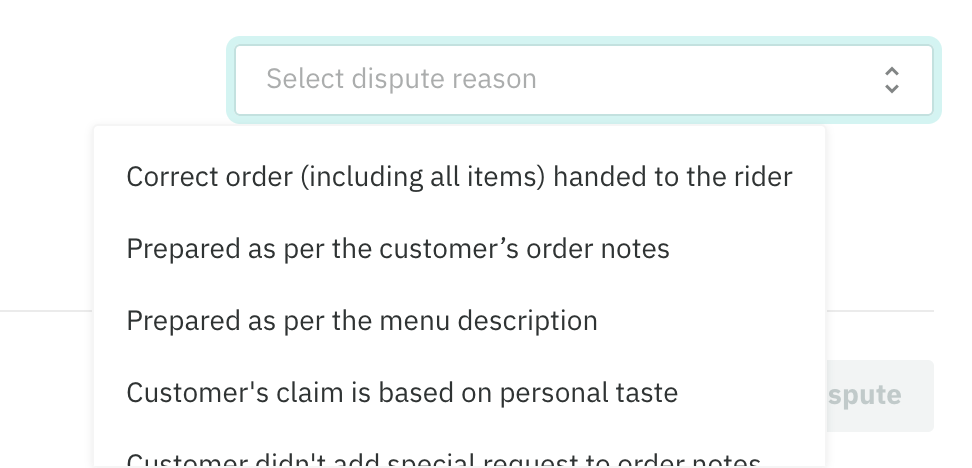
For the items you're disputing, select a reason from the dropdown. The options are:
— Correct order (including all items) handed to the rider
— Prepared as per the customer's order notes
— Prepared as per the menu description
— Customer's claim is based on personal taste
— Customer didn't add special request to order notes
— Other
Pick the reason that most accurately reflects what happened. Avoid "Other" unless none of the above genuinely apply. A specific reason is more persuasive.
Evidence requirements
You can upload supporting files alongside your dispute. Here's exactly what Deliveroo needs:
Accepted file types: JPEG, PNG, MP4 and MOV, up to 15MB.
Video timestamp rule: The recording must show either a visible timestamp within 20 minutes of the prep time or order ready time, or a visible order ID or receipt in frame. Footage without one of those will be dismissed regardless of what it shows.
What they look for by claim type:
— Missing items: The item clearly present during packing or handoff.
— Wrong order: The correct order being prepared.
— Food quality or dietary claims: Whether the item matches the menu description and menu images.
Many restaurants capture this by positioning a recording device above the packing station, where all items are assembled before the bag is sealed.
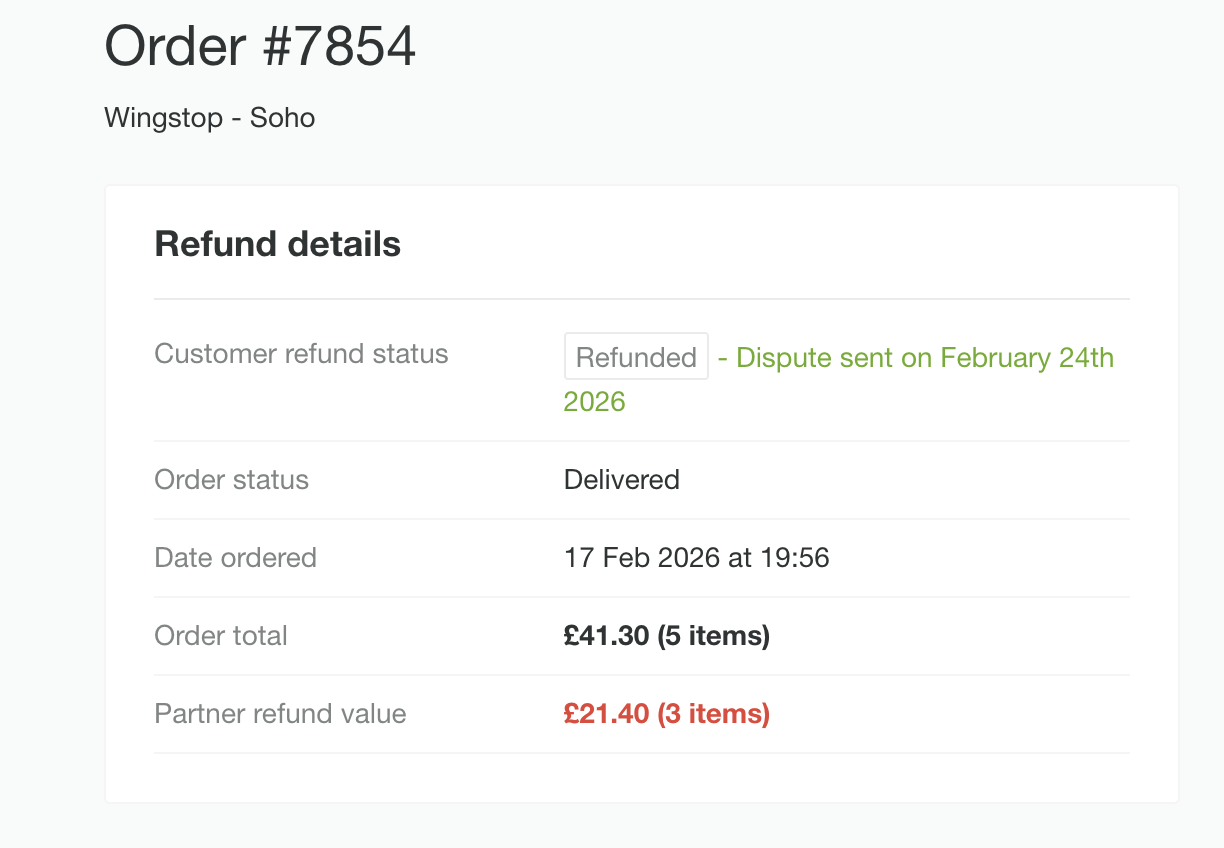
Submit the dispute. The status on the refund page will update to confirm it's been sent. According to Deliveroo, they aim to respond by email within three days. If you want to challenge their response, you have 72 hours to reply with additional evidence.
Step 4: Track the outcome
Back in the Refunds tab, the Refund disputes sub-tab lets you monitor everything you've submitted. Three statuses:
Review in progress. Submitted and waiting on Deliveroo.
Approved. A payment correction will appear on your next invoice. It will reference the original order ID, so keep a record of disputes submitted so you can reconcile them when the invoice comes in.
Rejected. You'll get an email with Deliveroo's reasoning. In practice these rejection emails tend to be templated and don't always give you much to work with. If you want to follow up, you have 72 hours to reply with additional evidence and escalate to the support team, which adds another round of work on top of everything else.
How long does a Deliveroo refund dispute take?
Here are the key deadlines to keep track of:
7 days — how long you have from when the refund is issued to submit your dispute in Partner Hub. Miss this window and the money is gone.
3 days — Deliveroo's target response time after you submit. They'll email you the outcome.
72 hours — if your dispute is rejected, this is how long you have to reply with additional evidence and escalate.
Next invoice — if approved, the payment correction shows up on your next scheduled payout, referencing the original order ID.
What actually gets disputes approved
Missing items accounts for the majority of refund claims on Deliveroo. It's also the easiest type of claim to submit, which is why it's where most disputes happen.
Submitting a dispute with a clear reason and valid evidence is the baseline. Beyond that, Deliveroo considers broader context when reviewing cases. They look at your overall operational performance, how consistently orders are fulfilled accurately, and how your profile compares against similar restaurants on the platform. Keeping a close eye on your operational metrics across all your sites, and reviewing them regularly with your team, gives you a clearer picture of where refund patterns are coming from and puts you in a stronger position when disputes get reviewed. If you want to tackle the root causes rather than just the claims, we've covered the prevention side separately: 5 fixes for reducing Deliveroo refunds in busy kitchens.
Handling refunds at scale
If you've read this far, you'll have a sense of how much is involved in doing this. Reviewing each refund, checking the order timeline, reading customer feedback, cross-referencing menu items and modifiers, gathering evidence, meeting timestamp requirements, selecting the right reason, tracking outcomes, filing escalations within 72-hour windows. For a handful of refunds a week it's manageable. Across multiple sites with dozens coming in from different delivery apps, logging into each one separately, it becomes a significant ongoing overhead.
DeliveryByte monitors and disputes refunds automatically across all your delivery apps. You create a Manager email alias on your accounts once and share it with us, and we handle everything from there. No missed windows, no admin. We also track your operational performance metrics across all sites so you can review them with your team during weekly meetings and keep a pulse on what's driving refunds.
Restaurants using DeliveryByte typically recover around 60% of disputed refund value, credited directly to your invoices.
If you would rather hand this off completely, take a look at our plans. Any questions, drop us a line.